Virtual staging for vacant rental listings
Use Virtual Staging to show how a vacant rental could be furnished. Start with a living area or an awkward room whose use is hard to see in the empty photos.
Open the editor to stage a rental photo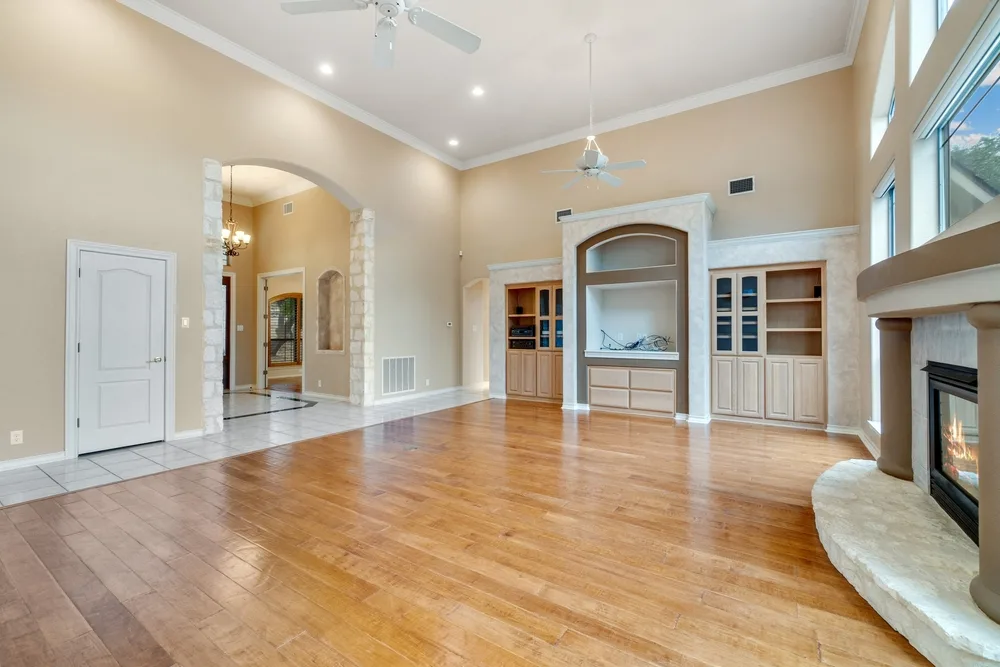 Vacant
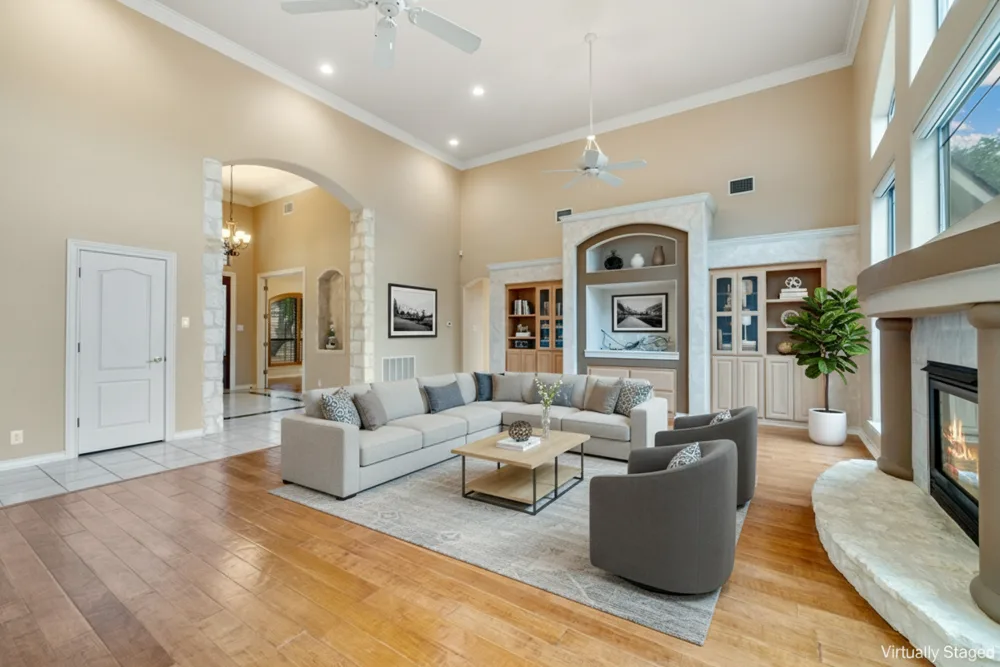 Virtually staged
Stage the spaces tenants have trouble picturing
Choose one angle that shows how a sofa or bed could fit beside the real doors and windows. Leave an empty view in the gallery so prospective tenants can judge the space and what is actually included with the lease.
If a floor plan repeats across several units, start from photos of the unit you are marketing. The view, flooring and fixtures can differ even when the room dimensions match.
Check the staging before using it in a listing
- Upload an empty room from the actual unit, select Virtual Staging, and check furniture scale against door openings and circulation space.
- Compare the result with the empty photo so appliances, built-ins, access points and visible condition remain accurate.
- Use the disclosure your listing channel requires and make clear which furnishings are included in the rental.
Common questions
What if the previous tenant’s furniture is still in the photo?
Start with a current vacant photo when possible. If you use Empty Room first, inspect the cleared areas before staging and budget for both edits.
Should I stage every photo?
Start with the angle that makes the biggest difference to room comprehension. Keep the remaining photos useful for showing layout, actual fixtures and condition.