Batch real estate photo editing
Upload up to 10 listing photos and apply the same edit across the set. Start with Auto Enhance or choose specific adjustments, then review each image before downloading.
Open the batch photo editor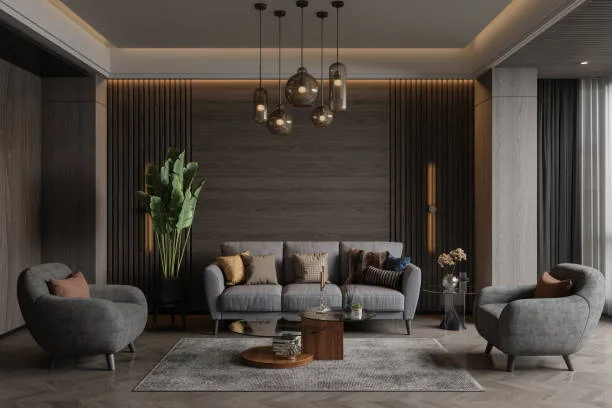 Original
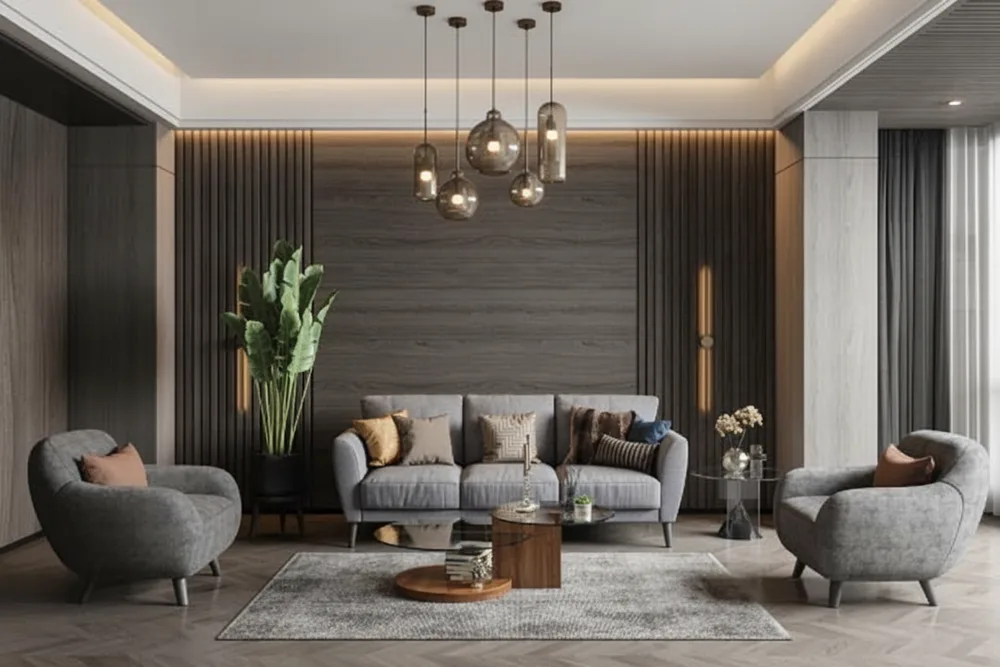 Lighting edit
Group photos that need the same correction
For one listing, group indoor angles with similar lighting separately from the exterior shots. Try a lighting or color correction on a representative interior first. Then apply it to the rest of that group if the whites, wall color, and shadows still look natural.
Handle bright windows, furniture removal and twilight individually when only one or two frames need those changes. That makes it easier to spot errors and avoids spending credits reprocessing photos that were already usable.
How to edit a listing set in batches
- Sign in with Google and upload up to 10 photos from the same listing.
- Select an edit and use the batch option. It applies the same instructions to each image independently.
- Review the edits one by one and download the finished images. For larger sets, repeat with the next group.
Budget for edits, including revisions
A set of 10 photos edited once uses 10 credits on a credit plan. Re-editing three photos brings the total to 13. For recurring listings, estimate monthly edit runs from your average photos per listing and how often you revise them.
Common questions
Can I apply different edits to different photos?
Yes. Select the photo and apply the edit to that image. Batch mode is for photos that need the same instructions.
Does a batch merge bracketed exposures?
A batch edits each target independently. To combine multiple exposures of the same shot into one photo, select Merge exposures in the editor.